Find a router near me: A practical guide for 2026
Find a router near me with confidence. Learn how to locate reliable options, compare models, optimize home coverage, and troubleshoot networks with practical steps from WiFi Router Help.


To find a router near me, start with your home size, budget, and coverage area. Narrow options to 2–3 reputable models, compare Wi‑Fi 6/6E, MU‑MIMO, and beamforming, and verify local availability and warranty. WiFi Router Help notes that distance from retailers and stock can vary, so filter by proximity and price when you search.
Defining Your Home Networking Needs Before You Search
Start by mapping your living space: how many floors, the thickness of walls, and the number and type of devices you rely on. In a typical home, you’ll want a router that supports at least Wi‑Fi 6 and robust beamforming to penetrate walls and maintain signal strength in far rooms. List devices (phones, laptops, smart TVs, gaming consoles, and IoT) and note peak usage hours. This helps you estimate required speeds and coverage, especially when you search for a router near me. If you frequently stream in 4K, play online games, or work from home, prioritize latency and stability over sheer peak speed. Keep a simple budget and sketch the layout of your living spaces to visualize potential dead zones and elevation differences that can affect signal.
This planning phase is where WiFi Router Help shines: understanding your home geometry reduces the number of options you must compare and helps you avoid overpaying for features you won’t use. Write down your must‑haves (secure guest network, USB connectivity, easy app control) and nice‑to‑have extras (mesh compatibility, parental controls, or a built‑in VPN). With these criteria clear, your local search becomes focused and efficient, lowering decision fatigue and shortening the path to a reliable router near you.
How Local Availability Impacts Your Choice
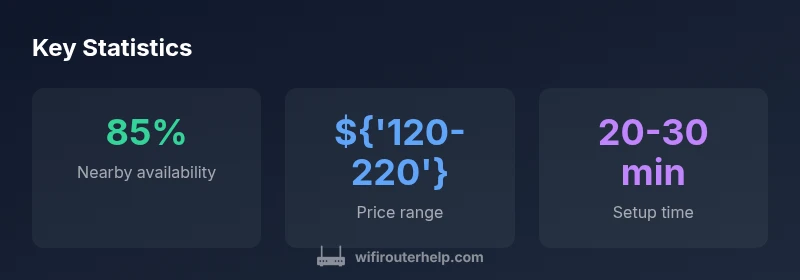
Local stock and store hours shape both price and speed of purchase. You may find two or three nearby retailers stocking popular models, while rural areas could have fewer options and longer wait times for back‑orders. Use local search filters to prioritize distance, price, and model availability; some shops offer in‑store pickup or same‑day delivery that online only listings cannot guarantee. When you search for router near me, consider whether the retailer provides easy returns, a clear warranty policy, and accessible customer support if you need help after purchase. If you plan to buy in person, visiting a store gives you a tangible sense of device size, build quality, and button layout, which can influence comfort during setup and day‑to‑day usage. Remember to check stock levels on weekends and holidays when shopping activity spikes and popular models tend to sell out quickly in high‑traffic neighborhoods.
Beyond stock, local experts can be a resource. Store staff often know which routers perform best in nearby apartment layouts or homes with many walls, and they can suggest compatible range extenders or mesh nodes that suit your space. WiFi Router Help recommends validating the exact model name in stock to avoid substitutions and ensuring you understand the return window before completing a purchase. If you have an existing ISP package, confirm whether the router you pick is compatible with your service and whether your plan requires any specific settings or modes to maximize performance. A small upfront effort here pays dividends in reliable connectivity across rooms and floors.
Features That Deliver Real Performance
Not all routers near me deliver the same value. Prioritize features that directly impact home networks rather than chasing marketing buzz. Key performance levers include the Wi‑Fi standard (prefer at least Wi‑Fi 6 or 6E for higher efficiency and capacity), multi‑antenna configurations (MU‑MIMO and beamforming), and the number of bands (dual‑band vs tri‑band) which influences how many devices can operate simultaneously without slowing down. For homes with many walls or floors, a mesh‑ready router with a robust mesh ecosystem can significantly improve coverage and reduce dead zones. Security is equally important; look for WPA3 support, automatic firmware updates, and strong default protections. QoS (Quality of Service) helps keep latency sensitive activities like gaming or video conferencing smooth when many devices are online. Parental controls and guest network capabilities are practical for households with children or visitors. Finally, check for convenient setup options like a mobile app, simple web UI, and quick reset processes. In short, balance speed, coverage, security, and ease of use to maximize value when you select a router near me.
Step‑By‑Step Setup and First Run
- Unbox and inspect the router for any physical damage; set it on a stable, elevated surface away from thick walls. 2) Connect the router to your modem using the WAN/Internet port and power it up. 3) Use the quick setup wizard in the app or web interface to choose your admin account and a strong password. 4) Change the default admin password immediately and enable WPA3 if available. 5) Update firmware to the latest version before configuring Wi‑Fi settings. 6) Create a unique SSID for your network and a strong password; enable WPA3 when possible. 7) Configure a guest network for visitors and set appropriate parental controls if needed. 8) Test network coverage in each room and adjust the router’s placement if you notice dead zones; consider a mesh extender if gaps persist. 9) Schedule periodic reboots or enable automatic reboots during off‑hours to maintain performance. 10) Document your network name, password, and device list for future troubleshooting and audits. A thoughtful setup avoids common problems and makes router near me a practical asset.
Troubleshooting Common Issues and Maintenance
Most home router issues stem from placement, interference, or outdated firmware. Start with placement: central, elevated, and away from microwaves or cordless phones to reduce interference. If speeds drop, run a quick speed test in the room where you most use the network, then re‑allocate channels to minimize overlap with neighbors. If your network feels congested, enable QoS or upgrade to a tri‑band or mesh setup to distribute load more evenly. Regular maintenance is essential: keep firmware updated, review connected device lists for unknown entries, and rotate passwords periodically. If problems persist after trying basic steps, check if your ISP is experiencing outages or if your modem needs a reboot. For more persistent issues, consult your retailer or ISP support and reference your model number and current firmware version. WiFi Router Help emphasizes the value of structured troubleshooting to isolate issues quickly and prevent frustration when searching for a router near me.
Authority sources for this guidance include government and industry standards on wireless security and networking best practices; always cross‑reference with official documentation when making hardware changes, especially in a home network with sensitive data.
Authority Sources
- https://www.fcc.gov
- https://www.nist.gov
- https://spectrum.ieee.org
Nearby router options and local availability comparison
| Model Type | Local Availability | Price Range | Key Features |
|---|---|---|---|
| Mesh Router Pro | Widely available in major cities | 120-180 | Mesh network, tri‑band, QoS |
| Common Router Plus | Available at many retailers | 80-150 | Dual‑band, easy setup, WPA3 |
| Budget Router Lite | Limited stock in rural areas | 40-90 | Basic features, good for small apartments |
People Also Ask
What does router near me mean in practical terms?
Router near me simply means looking for devices or services that are physically close to your location. It helps you find stock, support, and price more quickly. Always verify the exact model and stock status before visiting a store.
Router near me means looking for nearby stock and local support so you can get a device quickly. Check model availability and store hours before you go.
What should I check before buying a router in my area?
Check compatibility with your ISP, stock status, local warranty, and return policy. Compare models on features like Wi‑Fi standard, security, and ease of setup. Make sure the price you pay aligns with the model you want.
Check ISP compatibility, stock, warranty, and return policy. Compare features and prices to choose wisely.
Is there a difference between a router and a modem?
Yes. A modem connects to your internet service and provides a signal to your home. A router distributes that signal wirelessly to devices. Some devices combine both functions in one box, but dedicated routers often offer better performance and security features.
A modem brings internet into your home, and a router shares it with devices. Some devices combine both, but separate gear often performs better.
How often should I update router firmware?
Update firmware whenever a new version is released to improve security and performance. Many routers offer automatic updates, but you should periodically check for firmware notes and apply updates manually if needed.
Update firmware when available to keep security and performance up to date. Check for updates regularly.
Can I use a third‑party router with my ISP?
In most cases yes, but you may need to enable bridge mode on the modem or use IP passthrough. Some ISPs require you to use their equipment for certain plans. Check with your provider before buying a new router.
Usually yes, but you may need to adjust settings like bridge mode. Confirm with your ISP before buying.
What is the best way to test Wi‑Fi signal in my home?
Use a speed test app in multiple rooms and note signal strength. Move the router to optimize coverage, and consider mesh or extenders if there are persistent dead zones.
Test in multiple rooms, check speed and signal strength, then adjust placement or add extenders if needed.
“Local availability is important, but performance and security should drive your choice. Choose a model with reliable firmware updates and strong coverage for your home size.”
What to Remember
- Define home layout before shopping
- Prioritize coverage over max speed for router near me
- Check warranty and firmware update history
- Test signal in key rooms after setup